Units managed directly in the Olympuz tenants portal.
Tenant portal
Sign in
Use the email and password from your tenant registration.
New tenant?
Olympuz Tenants
Comfortable spaces, convenient living, and a rental experience designed around you.
Browse vacant units from our Olympuz listings. Apply to register as a tenant when you find the right fit.
Thoughtful essentials that make everyday living easier.
Units managed directly in the Olympuz tenants portal.
Account approval, billing proofs, and admin oversight.
Convenient living near work, school, and daily needs.
Reach the Olympuz team for tenancy and billing help.
A premium, organized way to find a room and manage your stay.
Olympuz Tenants connects people with comfortable rooms and a clear rental process—from application and approval to monthly billing.
Existing tenants can sign in to view due dates, pay via QR, upload proof, and track room billing status.
Registrations are reviewed by admin. Bills are disbursed with transparent line items. Payments are approved with proof.
Questions about a room or your tenancy? We’re here to help.
Email: talentsourcing.ph@olympuz-org.com
WhatsApp support: +63 991 522 5686
Already approved? Sign in to Overview and My Billing anytime.
Tenant portal
Use the email and password from your tenant registration.
New tenant?
Tenant registration
Submit your details for admin approval before portal access is granted.
Already registered?
Pending approval
Your tenant account is waiting for admin review. You will get portal access once it is approved.
Valid ID required
Upload a clear photo or PDF of your government ID to finish registration and send it for admin approval.
Registration denied
This registration was denied by an administrator.
Here’s an overview of your tenancy and upcoming payments.
Room billing statuses across Olympuz units.
Current amount due
—
Quick actions
Your assigned unit and current room billing status.
Billing status per room: Paid, Overdue, For Billing, or No Billing Posted.
View your rent, utility charges, and payment history in one place.
Scan the QR code, pay the bill total, then upload your proof of payment. Bills stay unpaid until admin approves.
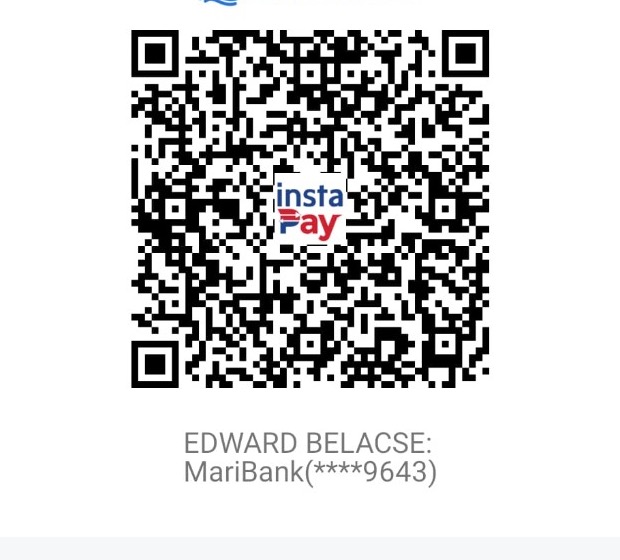
EDWARD BELACSE
MariBank (****9643)
Choose a module. More tools can be added here later.
Pending applications appear first.
Create a unit with a square type, then assign an approved tenant or unassign.
Create a bill for a tenant. Amount due only appears on their portal after disbursement.
Approve or deny tenant payment proofs.
Please read the full Terms & Conditions below, then click I agree to continue.
Loading rental agreement…
Amount due will only show after you disburse a bill in Billing.
Valid ID: Open attachment